
In order to import your contacts from other external sources like your email, spreadsheet software, or another CRM, you’ll need to export these files to Comma Separated Value (CSV) format – don’t worry, it’s easier than it sounds! Scroll down to find your software and follow the step-by-step instructions. Can’t find what you’re looking for? Contact us - our Customer Support team is ready to help:
- TF: 1.888.765.9221
- support@prospects.com
- Or use the Chat option in the bottom right corner of your CRM
Export Your Contacts From:
Outlook
Open Outlook and choose File/Open & Export

Next choose Import/Export

Select Export to File and click Next

Choose Comma Separated Values (CSV) as your file type and click Next. This will take you to the Folder selection page.

Select the Contacts folder then click Next.

Make sure it’s the Contacts Folder below your Outlook Account Name (you may have to scroll up).
Click Browse and enter your file name and click OK.

Select an Export Destination by clicking where you want to save your contacts. Your desktop is usually a good place if you’re going to upload your file to the CRM right away.

Click Finish.

Excel
In Excel open the contacts file you’d like to export. Under the File tab click Save As.
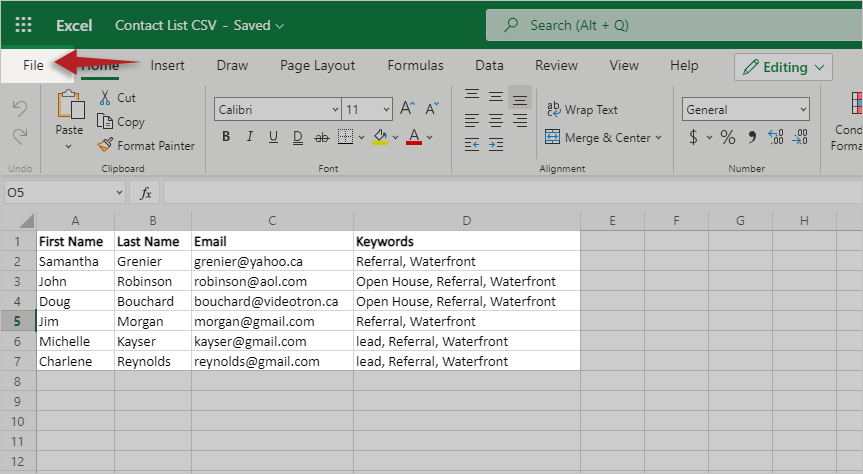
Next to File Format, use the dropdown menu to scroll down to choose Comma Separated Value (.csv), choose the desired name and location of the file, and then Save. Your CSV file has been created!

LionDesk
Click on the Profile page in your LionDesk account.

Next, tap the Export LionDesk Contacts button on the left and side of your Profile page.

LionDesk will send you a notification email when your export is complete. From the email, simply click the link to download your file. You’ll find it in the downloads folder on your computer.

Now you have a CSV Contact file to import into Prospects CRM!
Make sure to import the correct csv file! Your document file will end in .csv (ex: “mydocument.csv”)
Learn how to Sync your Google/Microsoft Calendar with your CRM, so you never miss an event! You can always browse the Getting Started Collection - you’ll find everything you need to quickly set up your CRM, so you can start engaging with your contacts and reach your business goals faster!
Need a Hand?
If you’d like a little extra assistance with any of the Prospects CRM features, our Customer Support team is ready to help. Contact us at support@prospects.com.